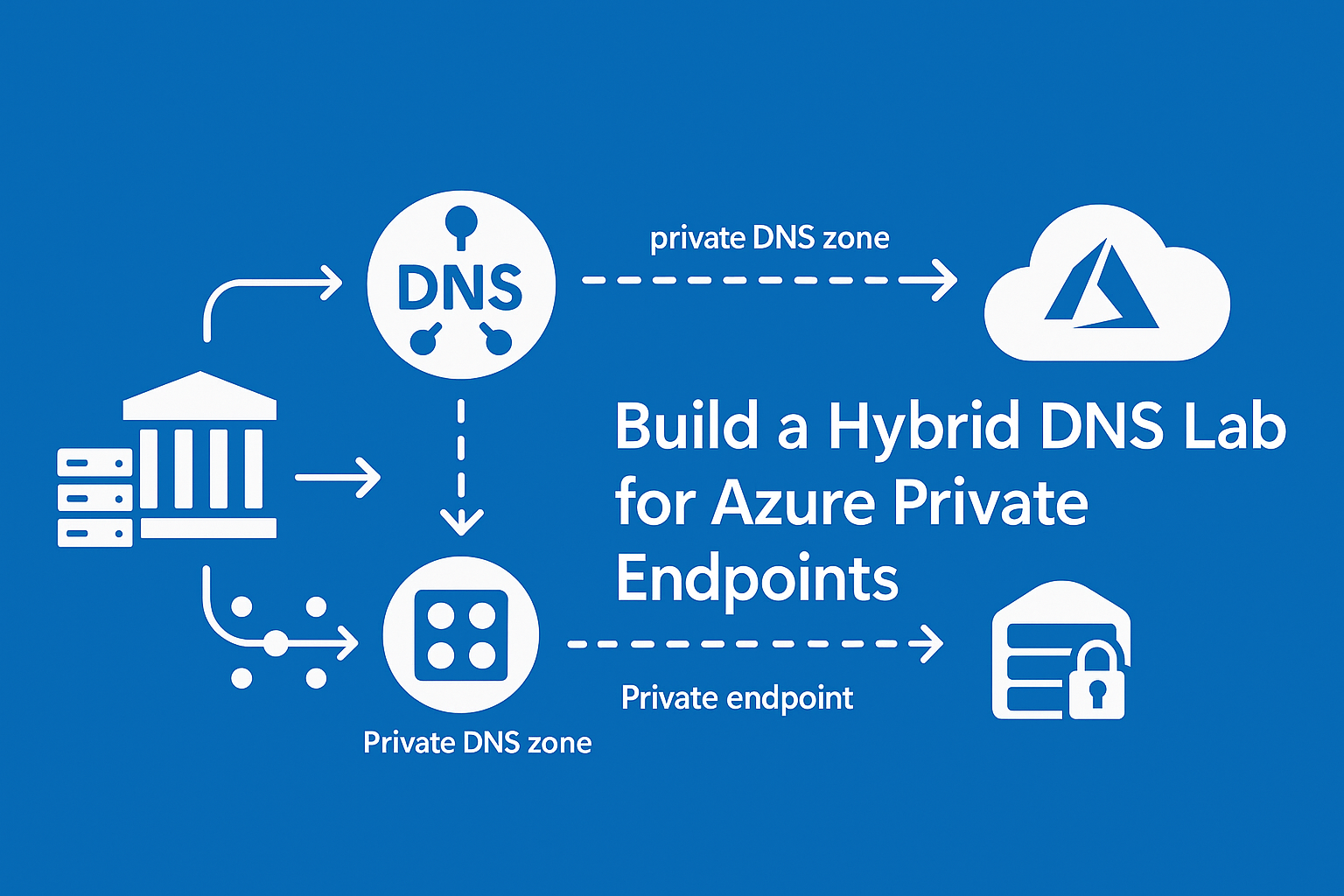

Microsoft’s documentation on Private Endpoint DNS Integration outlines how on-premises workloads can resolve Azure Private Endpoints using DNS forwarders. The architecture requires conditional forwarding, virtual network links, and careful DNS configuration—but testing these changes in production is risky. A single misconfiguration can break name resolution across your entire organization.
“In DNS, the best time to find a problem is in the lab. The worst time is 2 AM when your entire organization can’t resolve names.”
This post walks through deploying a complete lab environment that implements Microsoft’s recommended hybrid DNS patterns. You’ll get hands-on experience with Azure DNS Private Resolver, Private Endpoints, and Active Directory DNS integration in a safe sandbox.
TL;DR
Deploy directly to your Azure subscription with one click:
Or clone the repo and run the PowerShell deployment script:
git clone https://github.com/kelomai/azure-private-dns-lab.git
cd azure-private-dns-lab
./Deploy-TestEnvironment.ps1 -ResourceGroupName "rg-dnstest" -Location "eastus"
View on GitHub - Full source code and documentation
The repository includes:
- Bicep infrastructure template for hub-spoke network
- Automated deployment script with AD configuration
- DNS zone export/import PowerShell scripts
- Complete testing guide with validation steps
Either method deploys a full DNS lab in 30-40 minutes.
Why Build a Hybrid DNS Lab?
The Microsoft documentation describes a specific architecture for hybrid DNS resolution:
- On-premises DNS forwards queries to Azure DNS forwarders
- Azure DNS Private Resolver handles inbound queries from on-premises
- Private DNS zones resolve Private Endpoint FQDNs to private IPs
- Conditional forwarding routes domain-specific queries to the right DNS servers
Getting this wrong means on-premises workloads resolve public IPs instead of private endpoints—traffic goes over the internet instead of your private network. This lab lets you safely test and validate the entire DNS resolution chain before touching production.
Architecture Overview
The lab deploys a hub-spoke network topology following Microsoft best practices:
Hub VNet - Shared Services
The hub network hosts centralized infrastructure services:
- Domain Controller (10.0.1.4) - Windows Server 2016 with AD DS and DNS, domain: contoso.local
- Azure Bastion - Secure browser-based RDP access (no public IPs on VMs)
- DNS Private Resolver - Inbound endpoint at 10.0.4.4, outbound forwards to DC
Spoke VNet - Workloads
The spoke network simulates application workloads:
- Client VM (10.1.1.x) - Windows 11 Pro for testing DNS resolution
- Storage Account - Private endpoint with Azure Private DNS integration
- Private DNS Zone - privatelink.blob.core.windows.net linked to both VNets
DNS Resolution Flow
Understanding the DNS flow is critical for troubleshooting:
Client/DC VMs → DNS Resolver Inbound (10.0.4.4)
                    ↓
            Forwarding Rules Check
                    ↓
    contoso.local → DC (10.0.1.4) via Outbound Endpoint
    blob.core.windows.net → Azure Private DNS
    Other → Azure DNS (168.63.129.16)
This centralized DNS pattern ensures consistent resolution across all VNets while supporting both private DNS zones and on-premises Active Directory domains.
Prerequisites
Before deploying the lab, ensure you have:
- Azure subscription with Contributor or Owner role
- Azure CLI installed
- PowerShell 5.1+ (Windows) or PowerShell Core 7+ (cross-platform)
Deployment
Quick Deploy
The deployment script handles everything automatically:
./Deploy-TestEnvironment.ps1 -ResourceGroupName "rg-dnstest" -Location "eastus"
The script will:
- Auto-generate a secure password and display it (save it!)
- Deploy all Azure resources using Bicep
- Configure the Domain Controller with AD DS
- Save connection info to
connection-info.txt
Custom Password
If you prefer to specify your own password:
$password = ConvertTo-SecureString "YourP@ssw0rd!" -AsPlainText -Force
./Deploy-TestEnvironment.ps1 -ResourceGroupName "rg-dnstest" -Location "eastus" -AdminPassword $password
Deployment Timeline
| Phase | Duration | What’s Happening |
|---|---|---|
| Infrastructure | 3-5 min | VNets, NSGs, NICs, Storage, Private Endpoint, DNS zones |
| VM Creation | 2-3 min | Provision Domain Controller and Client VMs |
| VM Boot | 2-3 min | Windows startup |
| AD Configuration | 12-18 min | Install AD DS, promote to DC, automatic restart |
| Bastion & DNS Resolver | 2-3 min | Deploy access and DNS services |
| Total | 30-40 min | End-to-end deployment |
The AD configuration phase takes the longest because it installs AD DS, promotes the server to a domain controller, and performs an automatic restart. Be patient!
Connecting to VMs
VMs have no public IPs for security. Access is exclusively through Azure Bastion:
- Open Azure Portal
- Navigate to your resource group (e.g., rg-dnstest)
- Select a VM (Domain Controller or Client)
- Click Connect → Connect → Bastion
- Enter credentials:
- Username:
azureadmin - Password: (from connection-info.txt)
- Username:
- Click Connect to open a browser-based RDP session
DNS Testing Scenarios
Test 1: Verify DNS Configuration
On Client VM:
# Check DNS server setting
Get-DnsClientServerAddress -InterfaceAlias "Ethernet*"
# Should show: 10.0.4.4 (DNS Resolver)

# Test domain resolution
Resolve-DnsName dc01.contoso.local
# Should return: 10.0.1.4

# Test connectivity
Test-NetConnection -ComputerName 10.0.1.4 -Port 53
Test-NetConnection -ComputerName 10.0.1.4 -Port 389  # LDAP
Test 2: Private Endpoint Resolution
This test validates that Azure Private DNS zones work correctly:
# Get storage account name from connection-info.txt
$storage = "dnsteststorage123"  # Replace with yours

# Resolve storage endpoint
Resolve-DnsName "$storage.blob.core.windows.net"
# Should return private IP: 10.1.2.x (NOT public IP)

# Test connectivity
Test-NetConnection -ComputerName "$storage.blob.core.windows.net" -Port 443
If storage resolves to a public IP instead of 10.1.2.x, check that the Private DNS zone is linked to both VNets.
Test 3: DNS Zone Export and Import
On Domain Controller:
First, copy the DNS scripts to the DC using the Bastion session.
Export a DNS Zone:
cd C:\DNSScripts
.\Export-DNSZone.ps1 -ZoneName "contoso.local" -ExportPath "C:\Backup"
# Creates: C:\Backup\contoso.local_20251209_143022.json
Create Test Zone and Restore:
# Create new zone with test records
Add-DnsServerPrimaryZone -Name "test.local" -ReplicationScope "Domain"
Add-DnsServerResourceRecordA -Name "server1" -ZoneName "test.local" -IPv4Address "192.168.1.10"
Add-DnsServerResourceRecordA -Name "server2" -ZoneName "test.local" -IPv4Address "192.168.1.11"

# Export the test zone
.\Export-DNSZone.ps1 -ZoneName "test.local" -ExportPath "C:\Backup"

# Delete the zone
Remove-DnsServerZone -Name "test.local" -Force

# Verify it's gone
Get-DnsServerZone -Name "test.local"  # Should error

# Import from backup
$exportFile = Get-ChildItem "C:\Backup\test.local_*.json" | Sort-Object LastWriteTime -Descending | Select-Object -First 1
.\Import-DNSZone.ps1 -ImportFilePath $exportFile.FullName

# Verify restoration
Get-DnsServerResourceRecord -ZoneName "test.local"
Test 4: Cross-VNet DNS Resolution
Verify that both VNets can resolve each other’s resources:
On Client VM (Spoke VNet):
# Query via DNS Resolver
Resolve-DnsName contoso.local -Server 10.0.4.4

# Query DC directly (tests VNet peering)
Resolve-DnsName contoso.local -Server 10.0.1.4
On Domain Controller (Hub VNet):
# DC should resolve storage private endpoint
$storage = "dnsteststorage123"  # Your storage name
Resolve-DnsName "$storage.blob.core.windows.net"
# Should return private IP (zone linked to both VNets)
DNS Management Scripts
The repository includes three PowerShell scripts for DNS management:
Export-DNSZone.ps1
Exports AD-integrated DNS zones to JSON format for backup and version control:
.\Export-DNSZone.ps1 -ZoneName "contoso.local" -ExportPath "C:\Backup"
Features:
- Exports all record types (A, AAAA, CNAME, MX, NS, PTR, SRV, TXT, SOA)
- JSON format for easy version control with Git
- Timestamped exports for multiple backups
Import-DNSZone.ps1
Restores DNS zones from JSON exports:
.\Import-DNSZone.ps1 -ImportFilePath "C:\Backup\contoso.local_20251209.json"

# Replace existing zone
.\Import-DNSZone.ps1 -ImportFilePath "C:\Backup\zone.json" -Force
Features:
- Creates AD-integrated zones automatically
- Handles all replication scopes
- Skips auto-generated records (SOA, root NS)
New-DNSConditionalForwarder.ps1
Creates DNS conditional forwarders for specific domains:
# Forward Azure-specific domains to Azure DNS
.\New-DNSConditionalForwarder.ps1 -DomainName "azure.contoso.com" -ForwarderIPAddress "168.63.129.16"

# Create AD-integrated forwarder
.\New-DNSConditionalForwarder.ps1 -DomainName "privatelink.blob.core.windows.net" -ForwarderIPAddress "10.0.4.4" -ADIntegrated $true
Infrastructure as Code
The entire lab is defined in a single Bicep template. Here are some key design decisions:
Circular Dependency Resolution
A common challenge: VNet needs DNS Resolver IP, but DNS Resolver deploys into the VNet.
Solution: Use a static IP (10.0.4.4) for the DNS Resolver Inbound Endpoint:
// Hub VNet references static IP (no dependency)
dhcpOptions: {
  dnsServers: ['10.0.4.4']
}

// DNS Resolver uses that static IP
dnsResolverInboundEndpoint: {
  privateIpAllocationMethod: 'Static'
  privateIpAddress: '10.0.4.4'
}
Security Configuration
VMs are protected with NSGs that only allow necessary traffic:
DC NSG:
- Allow DNS (53) from VirtualNetwork
- Allow LDAP/Kerberos (88, 389, etc.) from VirtualNetwork
- Implicit deny for everything else
Client NSG:
- Allow RDP (3389) from AzureBastionSubnet
- Allow outbound to VirtualNetwork
Cost Breakdown
| Resource | Monthly Cost | % of Total |
|---|---|---|
| Azure Bastion | ~$140 | 49% |
| DC VM (D2s_v3) | ~$70 | 25% |
| Client VM (B2s) | ~$30 | 11% |
| Disks, DNS Resolver, Storage | ~$43 | 15% |
| Total | ~$283 | 100% |
Delete Bastion when not testing to save ~$140/month. You can redeploy it when needed.
Cleanup
When you’re done testing, delete all resources:
az group delete --name "rg-dnstest" --yes --no-wait
This stops all billing immediately and cleans up all resources.
Troubleshooting
Deployment Times Out
AD configuration can take up to 30 minutes. Check the VM extension status in Azure Portal: VM → Extensions → CustomScriptExtension.
Can’t Connect to VMs
VMs have no public IPs - you must use Azure Bastion. Ensure Bastion deployed successfully and check NSG rules.
DNS Resolution Fails
# Check DNS configuration
Get-DnsClientServerAddress
# Should show: 10.0.4.4

# If wrong, renew DHCP
ipconfig /renew

# Test DNS Resolver connectivity
Test-NetConnection 10.0.4.4 -Port 53
Test-NetConnection 10.0.1.4 -Port 53
Private Endpoint Returns Public IP
Verify private DNS zone links:
az network private-dns link vnet list \
  --resource-group rg-dnstest \
  --zone-name privatelink.blob.core.windows.net
# Should show links to both hub and spoke VNets
Production Considerations
This is a lab environment, not production-ready. Key differences for production:
| Setting | Lab | Production |
|---|---|---|
| AD Database | OS disk | Separate data disk on premium storage |
| DC Count | 1 | Minimum 2 for redundancy |
| Backup | None | Azure Backup |
| Monitoring | None | Azure Monitor, Log Analytics |
| Availability | None | Availability Sets or Zones |
Conclusion
Having a dedicated DNS testing lab eliminates the risk of testing changes in production. This hub-spoke architecture mirrors real enterprise patterns, giving you a safe environment to:
- Test DNS zone backup and restore procedures
- Validate Azure Private DNS integration
- Experiment with hybrid DNS scenarios
- Learn hub-spoke network patterns
The automated deployment makes it easy to spin up when needed and tear down when done, keeping costs under control.
For the complete code and detailed documentation, visit: Azure DNS Infrastructure Testing Lab
Related Posts: